
Overview
In some environments, users may notice that certain characters are replaced with a ? when inserting a signature using the Signature 365 Outlook add-in.
This typically affects:
Accented characters (e.g. é, ü, ñ)
Non-English characters
Special symbols
Certain UTF-8 characters used in marketing campaigns
This behaviour is not caused by Signature 365 itself, and occurs due to an encoding setting within Microsoft Outlook.
Cause
Microsoft Outlook can automatically select the email encoding format when composing messages.
In some versions or update channels, Outlook may default to a Western European (ISO) encoding format instead of UTF-8.
When this happens:
Outlook cannot represent certain Unicode characters
Unsupported characters are replaced with a
?The signature content appears altered after insertion
Signature 365 signatures are fully Unicode compatible and designed to render correctly when UTF-8 encoding is used.
Resolution
To resolve the issue, disable automatic encoding selection in Outlook and explicitly set the encoding to UTF-8.
Steps (Classic Outlook for Windows)
Open Outlook
Select File
Choose Options
Go to Advanced
Scroll to the International options section
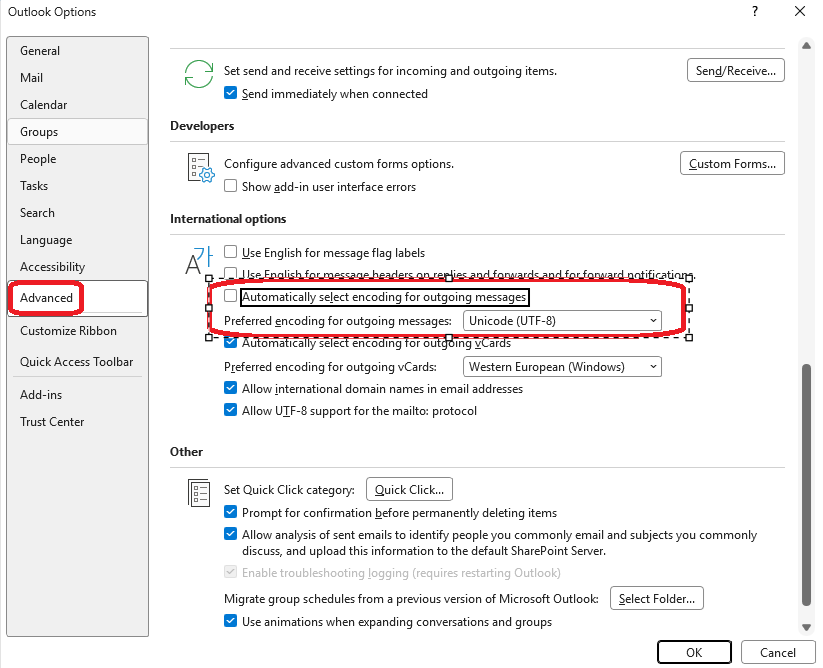
Uncheck:
Automatically select encoding for outgoing messages
Set:
Preferred encoding for outgoing messages to Unicode (UTF-8)
Click OK
Restart Outlook
After applying the fix
Once UTF-8 encoding is set:
Signatures will insert correctly
Special characters will render as designed
No further changes are required within Signature 365
Additional Notes
This issue only affects environments where Outlook’s encoding has been changed or defaults to ISO
It does not affect Outlook on the web or New Outlook
It is not related to Microsoft 365 tenant configuration
No changes are required within the Signature 365 portal
If the issue persists after applying the steps above, please contact Symprex Support with screenshots of the Outlook encoding settings.