
Our support team may ask you to capture a HAR log from Edge devtools - this is typically used to help Microsoft diagnose backend issues with the Office 365 service. The HAR file records all network activity during the affected workflow and allows us to pass detailed diagnostic data to Microsoft for investigation.
Before you begin
Make sure you have Microsoft Edge installed. These steps use Edge's built-in developer tools.
Steps
1. Open the Microsoft 365 Admin Centre
Navigate to Settings > Integrated apps in the Microsoft 365 Admin Centre.
2. Open Edge DevTools
Press Ctrl + Shift + I to open the DevTools panel. It will appear either docked to the side or bottom of your browser window.
3. Clear existing logs
Switch to the Console tab and click the ? clear icon (highlighted below) to remove any existing output. This ensures the captured log only contains activity relevant to your session.
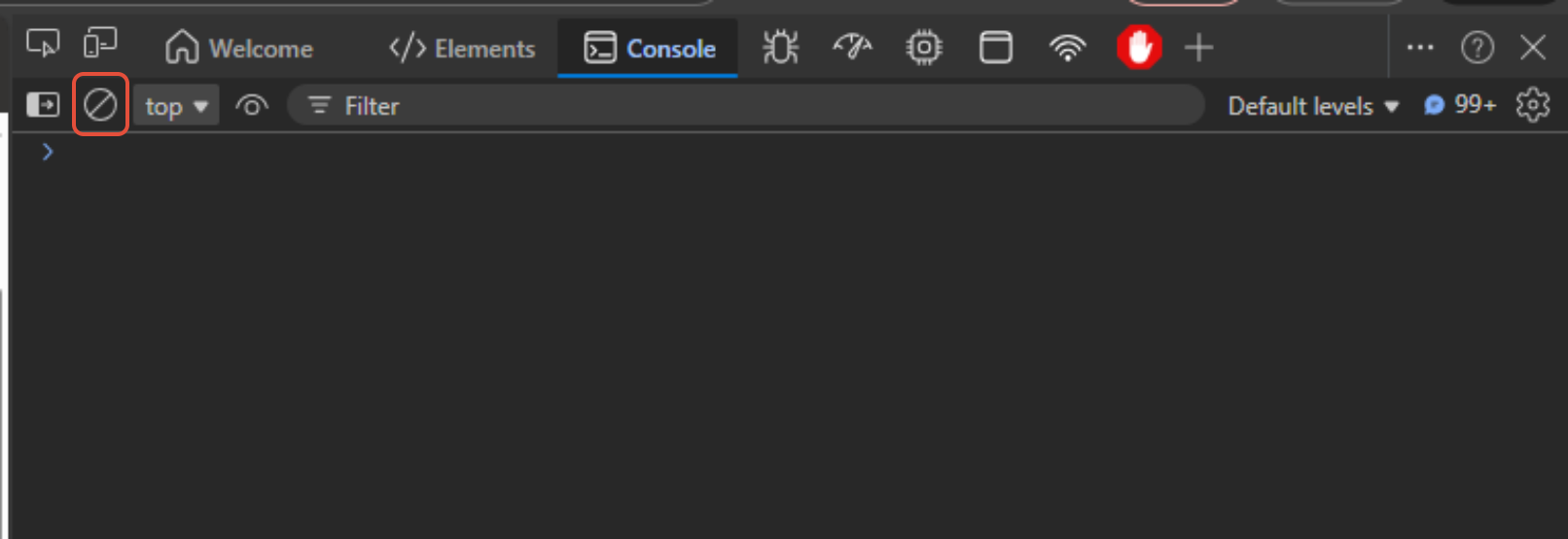
Then switch to the Network tab and click the same clear icon there.
4. Enable Preserve log
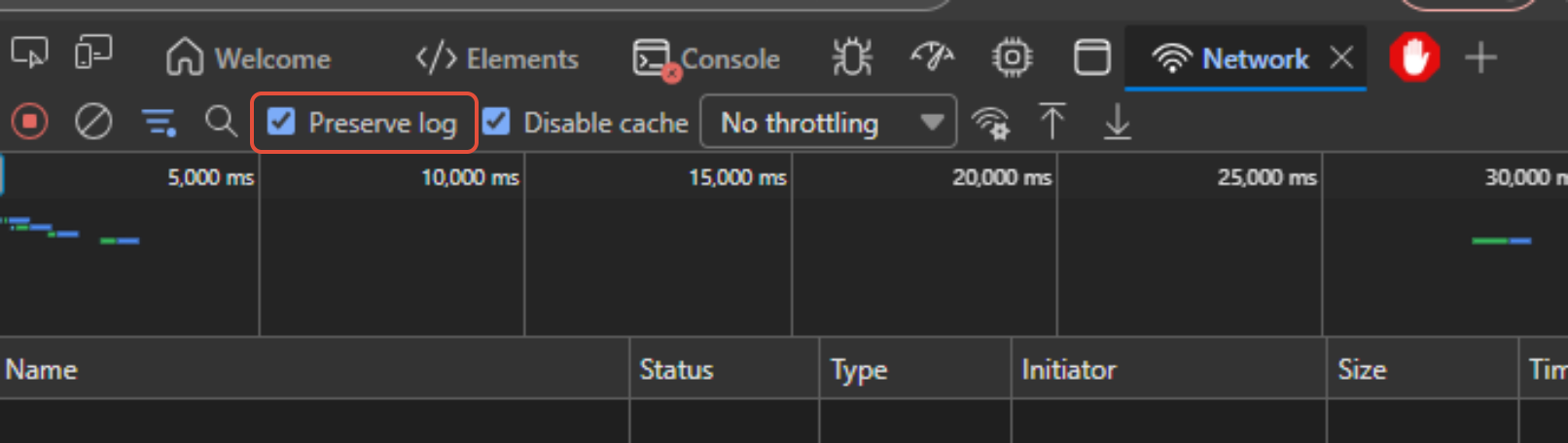
On the Network tab, tick the Preserve log checkbox (highlighted below). This prevents the log from being cleared when the page navigates, which is important for capturing the full failure sequence.
5. Reproduce the failure
Work through the process as normal, allowing it to fail as it would under normal circumstances. Do not close DevTools or navigate away before completing this step.
6. Export the HAR file
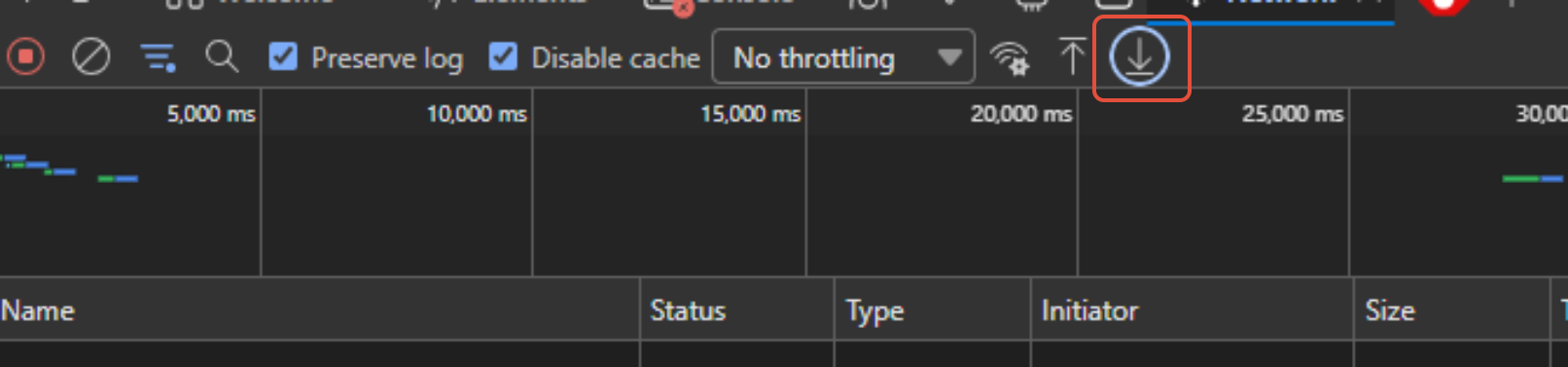
Once the failure has occurred, return to the Network tab and click the Export HAR button (the download icon, highlighted below).
Save the file to a location you can easily find it.
7. Send the file to support
Reply to your open support ticket and attach the HAR file. Our team will forward it to Microsoft for investigation.
Note: HAR files can contain sensitive information including authentication tokens and session cookies. Only share HAR files with trusted parties such as our support team or Microsoft directly.